I Asked a Coding Agent to Organize My TV
My Sony BRAVIA runs Android 14. Android exposes developer tools over the network. A coding agent can press buttons, read the screen, and take screenshots through those tools. I wanted to know how far that combination could go.
By the end of the evening the agent had inspected the television, inventoried every installed application, and reorganized the home screen into a Projectivy dashboard. Somewhere in between, I had to ask where Spotify had gone. That turned out to be the most useful moment of the whole experiment.
The Result, Up Front
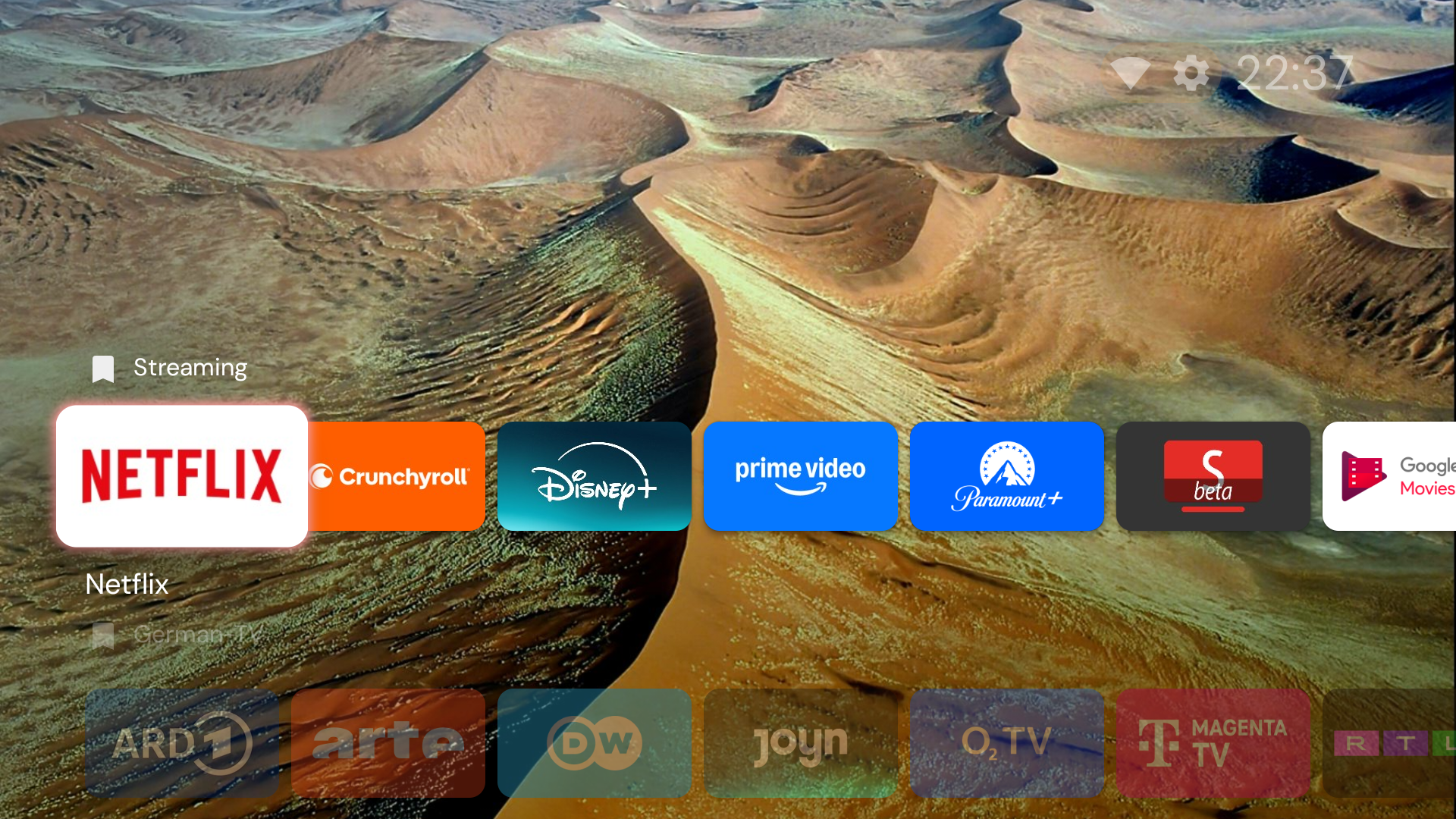
The TV now has a Projectivy dashboard organized around what I actually want to open:
| Row | What lives there |
|---|---|
| Streaming | Netflix, Prime Video, Disney+, Paramount+, Crunchyroll, YouTube, Sony Pictures Core, Play Movies |
| German TV | ARD, ZDF, ARTE, DW, Joyn, RTL+, MagentaTV, O2 TV, HD+, the TV tuner |
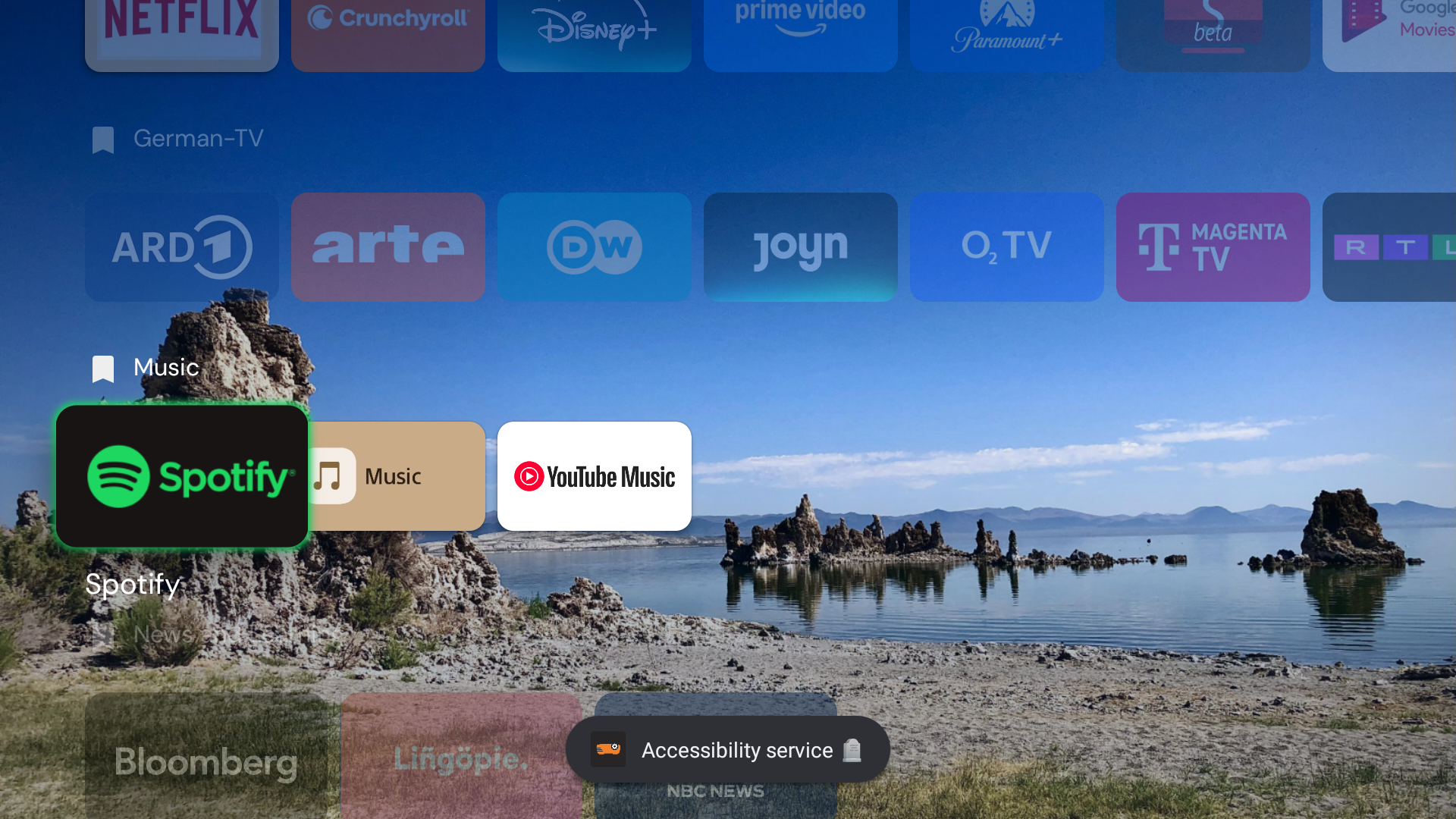
| Music | Spotify first, followed by Sony Music and YouTube Music |
| News and Learning | Bloomberg, NBC News, Lingopie |
| Inputs | HDMI shortcuts |
| Utilities | A compact grid for the Play Store, VPN, browser, media player, recordings, timers, and Sony tools |
Streaming uses Projectivy’s Frequently used sorting option. Utilities sits below the viewing apps, where it belongs. No applications were uninstalled.
Getting In
The first step was wireless ADB. I enabled developer options, opened Wireless debugging, and assumed that was enough. It wasn’t — the computer also needed to be paired, and wireless debugging presents two different endpoints: a temporary pairing port and a persistent connection port. Confusing them produces unhelpful connection failures.
adb pair TV_IP:PAIRING_PORT
# Enter the temporary code displayed on the TV.

adb connect TV_IP:CONNECTION_PORT
adb -s TV_IP:CONNECTION_PORT shell getprop ro.product.model
The connection port changed while we were setting things up. Treat the value displayed on the television as current; yesterday’s port is not configuration documentation. The full command reference is in the Android TV wireless ADB snippet.
Once connected, the agent inspected the system. The package inventory was the most revealing part: 336 Android packages, but only 26 non-system apps. Most packages were operating-system components, not hundreds of unwanted applications. Five familiar streaming-app icons were archived placeholders rather than full installations — opening them would trigger a download.
Automating a Remote Control
The agent navigated the TV the same way you would with a remote: pressing directional buttons, selecting items, going back. Between actions it dumped the UI tree with UI Automator and took screenshots to verify what was on screen.
adb -s TV_IP:PORT shell input keyevent DPAD_DOWN
adb -s TV_IP:PORT shell input keyevent DPAD_CENTER
adb -s TV_IP:PORT shell uiautomator dump /sdcard/codex-ui.xml
adb -s TV_IP:PORT exec-out screencap -p > screenshot.png
That worked — until it didn’t. This was real UI automation, with all the awkwardness that implies. Focus could remain on an unexpected item after a selection. Some settings reset their scroll position. Animated previews produced stale inspection output that didn’t match the actual screen.
Category reordering in Projectivy was the worst: navigate left into the headers, find the tiny reorder arrow, activate it, move the row, confirm. The UI tree reported focus on the whole header even when the arrow was selected. The only reliable pattern was slow: inspect, act, wait, inspect again. Batching key presses based on an old screen dump caused wrong selections every time.
Where Is Spotify?
The first version of the dashboard looked tidy. It also omitted Spotify, Bloomberg, Lingopie, and several other apps I actually use.
Nothing had been deleted. The agent had made the dashboard too selective and the original catch-all row was hidden. Technically reversible, but a poor experience — I went looking for Spotify and it wasn’t there.
That question changed the acceptance check entirely. A clean layout needed to account for every installed app, not merely make a screenshot look organized. We compared the curated rows with the full inventory, added Music and News and Learning categories, expanded Streaming, and kept All Apps available. Spotify went first in Music.
I also wanted streaming apps ordered by usage. Projectivy offered a frequency-based sort, but the Android usage data we inspected was mostly zeros. One app had accumulated background-service time, which is not the same as someone watching videos. We enabled the sorting option without pretending to have reconstructed my viewing habits. The configuration was verified; the historical ranking wasn’t.
The stock Google TV launcher stayed installed throughout. A preferred-HOME assignment didn’t override Sony’s behavior, and later in the session the Home button opened Google TV again instead of Projectivy. We preserved that state and kept editing Projectivy by launching it directly. The final result is a configured alternative dashboard — not a claim that every boot path has been permanently replaced.
What Stuck
A coding agent can work on a television because Android already exposes the controls. The interesting part was combining package inspection, remote input, screen structure, and screenshots in one conversation. The limits were equally concrete: saved focus isn’t intent, background time isn’t viewing time, and a tidy dashboard isn’t complete if it hides the app you wanted to use.
I kept the screenshots and wrote a local SKILL.md with the connection procedure and navigation quirks. Next time, the starting point is a working procedure rather than another evening of rediscovering which tiny arrow moves a category.
- Sony BRAVIA, Android 14
- Projectivy Launcher 4.72
- Android SDK Platform Tools / ADB 36.0.2 on Linux
- Codex for inspection and remote UI control
- Original TV screenshots captured throughout the session
These are observations from my own television and setup session. Menu behavior and available options can differ across models and firmware versions.
The views and opinions expressed here are my own and do not reflect those of my employer.